 Khan Nasir
Affiliate Disclosure: ClickOn24 is reader-supported. When you buy through links on our site, we may earn an affiliate commission at no additional cost to you. As an Amazon Associate we earn from qualifying purchases. Our recommendations are based on independent research.
Also Read


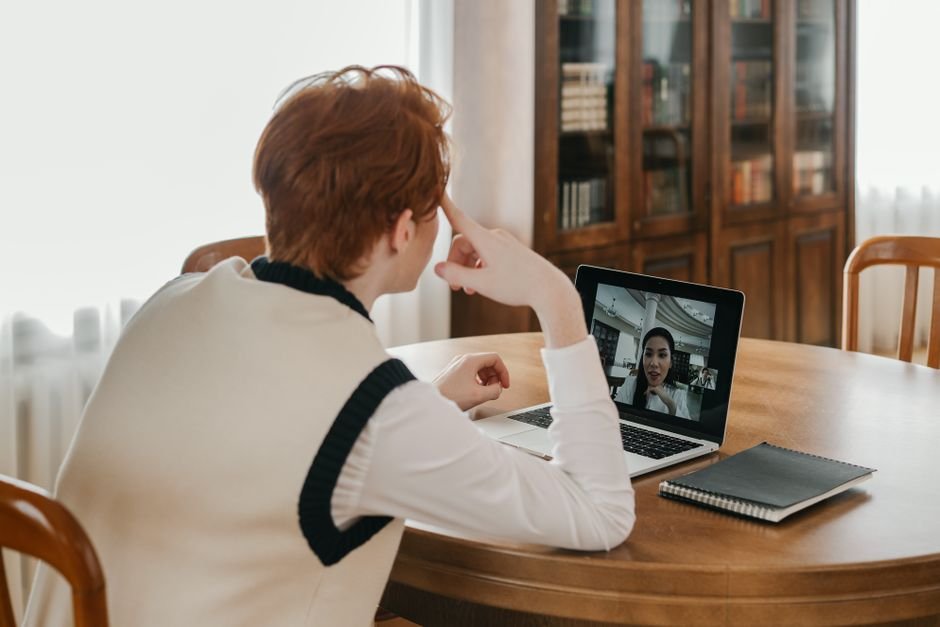
Your laptop’s built-in webcam is almost certainly the weakest part of how you show up online. Most are stuck at grainy 720p, mounted at an unflattering angle, and hopeless in anything but perfect lighting — which is a problem when video calls, client meetings, interviews, and streams are how a lot of us work now. A good external webcam fixes all of that in about thirty seconds of plugging in. After researching the current market across video quality, low-light performance, autofocus, and value, my top pick is the Logitech Brio 4K — the sharpest, most reliable all-rounder for professional video.
Below I’ll cover what actually matters when choosing a webcam, then the 7 best webcams for 2026 — for remote work, streaming, and content creation, at every budget.
💡 Key Takeaways
- 1080p at 60fps is the sweet spot for most people; 4K matters mainly for streaming and content creation.
- Best overall: Logitech Brio 4K. Best value: Logitech C920x. Best for streaming: Razer Kiyo Pro.
- Good low-light performance and autofocus matter more day-to-day than raw resolution.
- Lighting beats megapixels — even a great webcam needs decent light in front of you (not behind).
- Check the mount and field of view: a narrower FOV flatters head-and-shoulders calls; a wide FOV suits group shots.
In This Guide
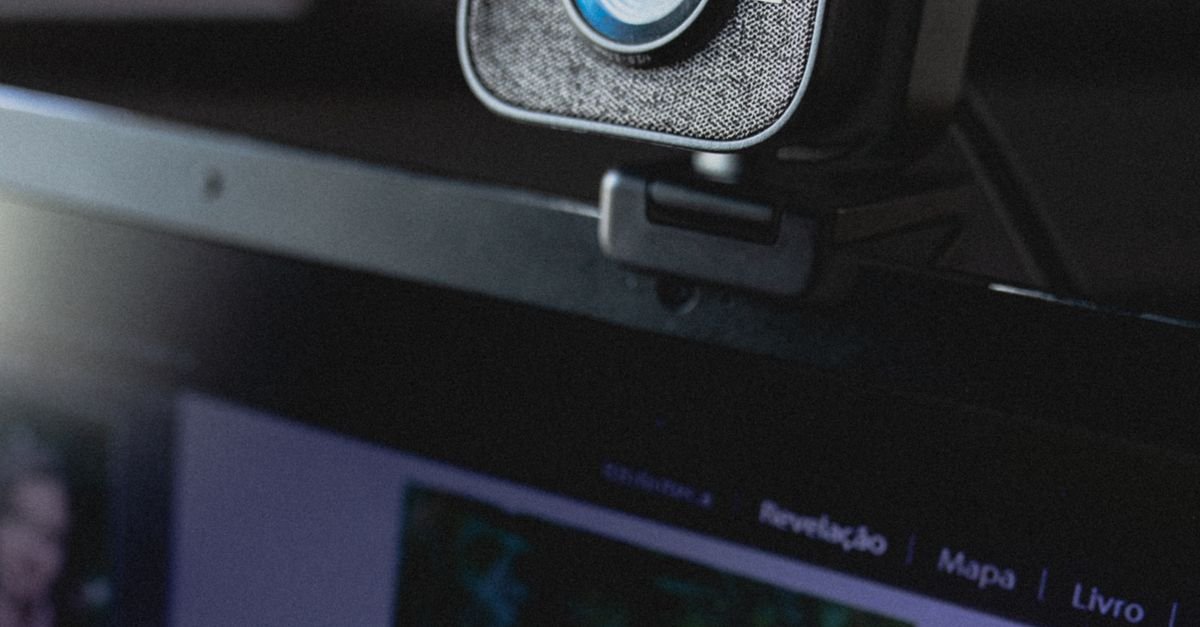
- What to look for in a webcam
- Quick comparison table
- The 7 best webcams
- Tips for looking your best on camera
- Frequently asked questions
What to Look for in a Webcam
Resolution & Frame Rate
A webcam’s resolution (720p, 1080p, 4K) sets its sharpness, and frame rate (fps) sets its smoothness. For most video calls, 1080p at 30fps is plenty; 1080p at 60fps looks noticeably smoother and is ideal. 4K is worth it mainly if you stream, create content, or want to crop in while keeping detail — and note that many video-call platforms cap the resolution they actually transmit anyway.
Low-Light Performance
This is where cheap webcams fall apart. A larger sensor and good auto-exposure keep you looking clear in normal room lighting instead of grainy and dim. If your space isn’t brightly lit, prioritize low-light performance over raw resolution — it makes a bigger day-to-day difference.
Autofocus & Field of View
Autofocus keeps you sharp as you move; fixed-focus cameras can be crisper for a static setup but won’t adjust. Field of view (FOV) matters too: a narrower FOV (around 65–78°) flatters a single person on a call, while a wider FOV (90°+) fits more of a room or several people — but can distort and show more background clutter.
Microphone, Mounting & Privacy
Built-in mics are convenient but rarely great — a dedicated mic or headset always sounds better. Check the clip fits your monitor or laptop and whether it has a tripod thread. A built-in privacy shutter (or included cover) is a small but genuinely reassuring feature.
Quick Comparison Table
| Webcam | Max Resolution | Best For |
|---|---|---|
| Logitech Brio 4K | 4K / 1080p60 | Best overall |
| Logitech C920x | 1080p30 | Best value |
| Razer Kiyo Pro | 1080p60 | Streaming |
| Elgato Facecam MK.2 | 1080p60 | Content creators |
| Anker PowerConf C200 | 2K / 1080p | Budget |
| Insta360 Link | 4K | AI auto-tracking |
| Dell UltraSharp WB7022 | 4K | Business/pro |
The 7 Best Webcams for 2026
1. Logitech Brio 4K — Best Overall
The Logitech Brio remains the all-rounder to beat. It shoots genuine 4K (and a buttery 1080p at 60fps), with excellent autofocus, strong HDR that handles tricky lighting, and an adjustable field of view so you can frame tightly or wide. The build quality is excellent, it includes a privacy shutter, and it works seamlessly across Windows, macOS, and all the major call and streaming apps. It’s not the cheapest, but it’s the webcam I’d recommend to anyone who wants to look sharp and professional on every call without thinking about it. A dependable, do-everything choice.
- ✅ True 4K plus smooth 1080p60
- ✅ Excellent autofocus and HDR for difficult lighting
- ✅ Adjustable field of view; built-in privacy shutter
- ❌ Premium price; 4K benefits need a capable computer
Resolution: 4K / 1080p60 | Best for: Professionals wanting the best all-rounder
2. Logitech C920x HD Pro — Best Value
The Logitech C920 line has been the default “good webcam” recommendation for years, and the C920x keeps that crown. It delivers clean, reliable 1080p at 30fps, solid autofocus, and dual built-in mics that are perfectly fine for calls — all at a price that’s a fraction of the premium models. It’s plug-and-play across every platform and endlessly well-supported. It won’t do 4K or 60fps, but for the overwhelming majority of video calls and meetings, it looks great and costs little. The smart default for most people.
- ✅ Reliable, clean 1080p30 at a great price
- ✅ Solid autofocus and decent dual mics
- ✅ Universally compatible and well-supported
- ❌ No 4K or 60fps; average low-light performance
Resolution: 1080p30 | Best for: Everyday calls on a budget
3. Razer Kiyo Pro — Best for Streaming
Built with streamers in mind, the Razer Kiyo Pro pairs a large, light-sensitive sensor with uncapped 1080p at 60fps for smooth, detailed video — and crucially, it performs well in imperfect lighting, where many webcams struggle. It supports HDR, has an adjustable field of view, and connects over USB 3.0 for high-bitrate capture. The low-light strength and smooth frame rate make it excellent not just for streaming but for anyone whose room isn’t studio-lit. If you go live or record regularly, this is a standout.
- ✅ Smooth uncapped 1080p60; strong low-light sensor
- ✅ HDR support and adjustable FOV
- ✅ Great for streaming and dim rooms
- ❌ No 4K; larger and pricier than basic cams
Resolution: 1080p60 | Best for: Streamers and low-light setups
4. Elgato Facecam MK.2 — Best for Content Creators
Elgato built the Facecam for creators who want control, and the MK.2 refines it nicely. It uses a high-quality fixed-focus lens (sharp at typical desk distance, with no autofocus hunting mid-stream) and a capable sensor, paired with Elgato’s excellent Camera Hub software that exposes manual controls over exposure, white balance, and more — like a proper camera. It’s a favorite in streaming and content setups for its image consistency and tweakability. If you want studio-style control rather than point-and-shoot simplicity, it’s superb.
- ✅ Sharp fixed-focus lens — no mid-stream focus hunting
- ✅ Deep manual controls via Camera Hub software
- ✅ Consistent, tweakable, creator-focused image
- ❌ Fixed focus needs correct distance; software-reliant
Resolution: 1080p60 | Best for: Streamers and creators wanting manual control
5. Anker PowerConf C200 — Best Budget
Anker’s PowerConf C200 proves you don’t need to spend much for a genuine upgrade over a built-in cam. It offers crisp 2K resolution (and standard 1080p), a switchable field of view, decent auto-adjusting image quality, dual noise-reducing mics, and a privacy cover — all at a budget-friendly price. It’s compact, plug-and-play, and a great pick for remote workers and students who just want to look clear and professional on calls without overspending. For the money, it’s a lot of webcam and an easy recommendation.
- ✅ Crisp 2K and 1080p at a budget price
- ✅ Adjustable FOV, noise-reducing mics, privacy cover
- ✅ Compact and plug-and-play
- ❌ Low-light performance is good-not-great
Resolution: 2K / 1080p | Best for: Remote workers and students on a budget
6. Insta360 Link — Best AI Auto-Tracking
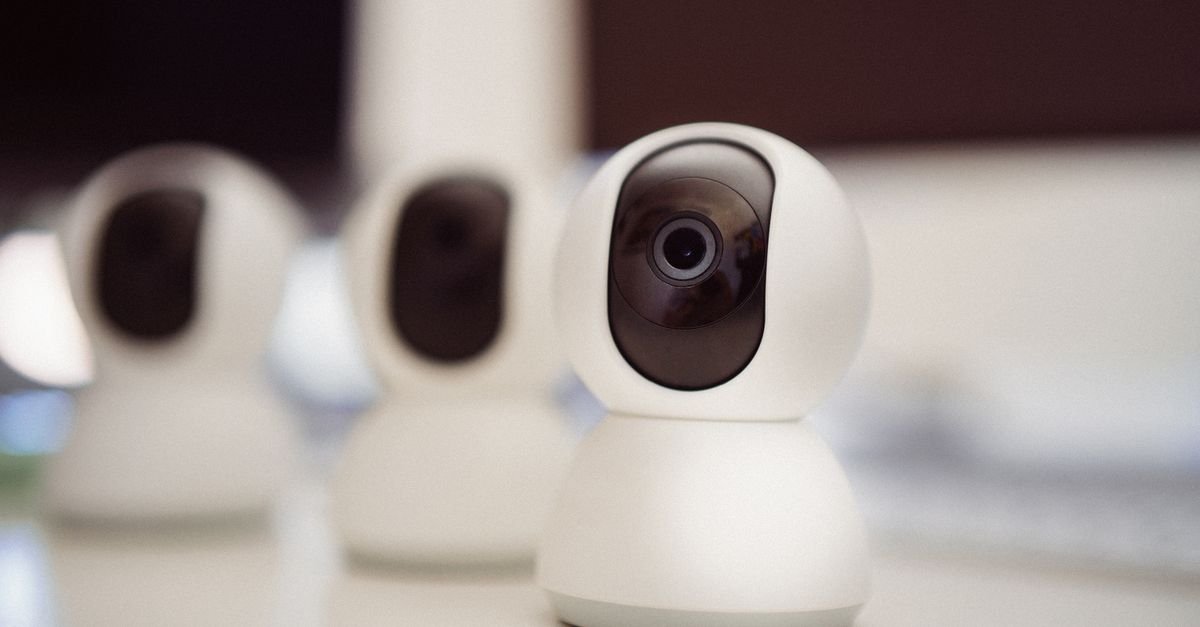
The Insta360 Link is the clever one. Mounted on a motorized gimbal, it physically pans, tilts, and zooms to track you as you move — brilliant for presenters, teachers, and anyone who doesn’t sit perfectly still. It shoots sharp 4K, has strong AI features (gesture control, whiteboard and overhead modes), and the gimbal even rotates the camera down to show documents on your desk. It’s a premium, genuinely innovative webcam. If you present, demo, or move around during calls, the auto-tracking is a game-changer that fixed cameras simply can’t match.
- ✅ Motorized gimbal AI-tracks you as you move
- ✅ Sharp 4K with gesture control and special modes
- ✅ Overhead/document mode for demos
- ❌ Premium price; more setup than a simple cam
Resolution: 4K | Best for: Presenters and people who move on camera
7. Dell UltraSharp WB7022 — Best for Business
The Dell UltraSharp WB7022 is a polished, professional 4K webcam aimed at the corporate desk. It features a large Sony STARVIS sensor for excellent clarity and low-light performance, AI auto-framing that keeps you centered, multiple field-of-view options, and a clean, understated design that looks at home in any office setup. It’s a premium business choice that prioritizes image quality and reliability over streaming flair. For client calls, executive meetings, and anyone who wants to look crisp and professional, it’s an excellent, refined option.
- ✅ Large Sony sensor — great clarity and low light
- ✅ AI auto-framing keeps you centered
- ✅ Clean professional design; multiple FOV options
- ❌ Premium price; less geared toward streaming
Resolution: 4K | Best for: Professional and business video calls
Tips for Looking Your Best on Camera
- Light your face, not your back. Put your main light source (a window or lamp) in front of you, not behind — backlighting turns you into a silhouette. This single change beats any megapixel upgrade.
- Raise the camera to eye level. Prop your laptop or mount the webcam so the lens sits at or just above eye height for a flattering, engaged angle (no up-the-nose shots).
- Mind your background. A tidy, simple background reads as professional. If yours is cluttered, a narrower field of view shows less of it.
- Use a dedicated mic if audio matters. Even a great webcam’s built-in mic is mediocre — a headset or standalone mic makes you sound far more professional.
- Check your settings. Make sure your call app is actually using the external webcam (not the built-in one) and transmitting the highest resolution it allows.
Frequently Asked Questions
Do I really need an external webcam?
If you take video calls regularly, almost certainly yes. Most built-in laptop webcams are low-resolution, perform poorly in anything but bright light, and sit at an unflattering angle. An external webcam dramatically improves your image quality, low-light clarity, and framing for a relatively small cost, and it plugs in via USB in seconds. For anyone whose job, studies, or content involves being on camera, it’s one of the highest-impact, lowest-effort upgrades you can make.
Is a 4K webcam worth it over 1080p?
For most people, 1080p (ideally at 60fps) is the practical sweet spot, since many video-call platforms cap the resolution they actually transmit, so the extra 4K detail may never reach the other side. 4K genuinely helps if you stream, record content, or want to crop into the image while keeping it sharp. If you’re mainly doing Zoom and Teams calls, a great 1080p webcam will look excellent and save you money over a 4K model.
Why does my webcam look grainy or dark?
It’s almost always lighting, not the camera. Webcams need decent light on your face to produce a clean image, and they struggle when the room is dim or when a bright window sits behind you. Add a light source in front of you (a window or a simple desk lamp works), avoid backlighting, and you’ll see a huge improvement. If your room is often dark, choose a webcam known for strong low-light performance, like the Razer Kiyo Pro or Dell UltraSharp.
Are built-in webcam microphones good enough?
They’re convenient and fine for casual calls, but they’re rarely great — they pick up room echo and background noise, and they sound thin compared to dedicated audio. If how you sound matters (client meetings, interviews, streaming, podcasting), a separate USB microphone or a headset will make a far bigger difference than most people expect. Many people upgrade their webcam and are then surprised that audio, not video, was their weakest link.
Will any webcam work with my laptop and apps?
Virtually all modern USB webcams are plug-and-play and work across Windows, macOS, and Chrome OS, and with all the major apps — Zoom, Teams, Google Meet, OBS, and so on. Just connect it via USB and select it as your camera in the app’s settings. Some webcams add optional companion software for extra controls, but you don’t need it for basic use. Check the USB port type (USB-A vs USB-C) and that you have a free port before buying.
The Bottom Line
Upgrading your webcam is one of the easiest ways to look more professional online, and 2026 has an excellent option at every level. For most people, the Logitech Brio 4K is the best all-rounder, while the Logitech C920x remains the unbeatable budget default. Streamers should look at the Razer Kiyo Pro or Elgato Facecam MK.2, presenters will love the auto-tracking Insta360 Link, and businesses can’t go wrong with the Dell UltraSharp. Whichever you choose, remember: good lighting in front of you matters as much as the camera itself.
Building out your desk setup? See our guides to the best laptops for programming, the best monitors for coding, and the best portable SSDs.


 Khan Nasir