 Khan Nasir
Affiliate Disclosure: ClickOn24 is reader-supported. When you buy through links on our site, we may earn an affiliate commission at no additional cost to you. As an Amazon Associate we earn from qualifying purchases. Our recommendations are based on independent research.
Also Read


Modern laptops are gloriously thin — and they’ve paid for it by dropping nearly every port you actually need. If your daily routine involves plugging in a monitor (or two), an external drive, ethernet, a keyboard, and power, all through one or two USB-C ports, a docking station is the single best upgrade for your desk. One cable to your laptop, and everything connects at once. After researching the market on port selection, display support, charging, and reliability, our top pick is the CalDigit TS4 — the most complete, powerful dock available.
Below we’ll cover what to look for, then the 7 best USB-C docking stations for 2026 — for single-cable desks, multi-monitor setups, and every budget.
💡 Key Takeaways
- A dock turns one USB-C/Thunderbolt cable into a full desk of ports — displays, drives, ethernet, peripherals, and charging.
- Best overall: CalDigit TS4. Best value: Anker 575. Best budget: UGREEN Revodok.
- Thunderbolt 4 docks support dual high-res monitors and fast data; plain USB-C docks are cheaper but more limited.
- Check power delivery (PD) — you want enough wattage to charge your specific laptop through the dock.
- Match the dock to your laptop: Thunderbolt laptops unlock the most; many USB-C-only laptops (and M-series Macs) have display limits — check before buying.
In This Guide
- What is a USB-C docking station?
- What to look for
- Quick comparison table
- The 7 best docking stations
- Setup tips
- Frequently asked questions
What Is a USB-C Docking Station?
A USB-C docking station is a hub that connects to your laptop with a single USB-C or Thunderbolt cable and expands it into many ports at once — typically multiple video outputs (HDMI/DisplayPort), USB-A and USB-C ports, ethernet, an SD card reader, audio, and power delivery to charge your laptop. Instead of plugging everything in individually, you connect (and disconnect) your entire desk setup with one cable. It’s the cornerstone of a clean, efficient workstation.
What to Look for in a Docking Station
Thunderbolt vs. Standard USB-C
Thunderbolt 4 (or USB4) docks offer the most bandwidth — driving dual high-resolution monitors, fast 40Gbps data, and high-wattage charging. They cost more and need a Thunderbolt/USB4 laptop to unlock everything. Standard USB-C docks are more affordable and fine for a single monitor and basic peripherals, but have lower display and data limits. Match the dock to what your laptop supports.
Display Support
Decide how many external monitors you need and at what resolution/refresh rate, then check the dock supports it with your laptop. This is the most common pitfall: a dock may advertise dual 4K, but a USB-C-only laptop (or an M-series MacBook, which natively drives just one external display without workarounds) may not deliver it. Confirm compatibility for your exact machine.
Power Delivery (Charging)
If you want the dock to charge your laptop over the same cable, check its power delivery (PD) wattage matches your laptop’s needs — 60W–100W+ for most ultrabooks, more for powerful machines. A dock with too little PD will run but charge slowly or not at all.
Ports You Actually Need
Count what you plug in — monitors, external drives (and their USB speed), ethernet, card readers, headphones, your keyboard/mouse receiver — and pick a dock that covers them with a little room to spare. More ports and faster standards (USB 3.2 Gen 2, 2.5GbE ethernet) future-proof your setup.
Quick Comparison Table
| Dock | Type | Best For |
|---|---|---|
| CalDigit TS4 | Thunderbolt 4 | Best overall |
| Anker 575 (13-in-1) | USB-C | Best value |
| Plugable Triple Display | USB-C | Multiple monitors |
| Dell WD22TB4 | Thunderbolt 4 | Business |
| Belkin Connect TB4 Pro | Thunderbolt 4 | Premium alt. |
| UGREEN Revodok Pro | USB-C | Budget |
| Anker 341 (7-in-1) | USB-C hub | Portable |
The 7 Best USB-C Docking Stations for 2026
1. CalDigit TS4 — Best Overall
The CalDigit TS4 is the dock power users dream about — an astonishing 18 ports packed into a sleek aluminum body. Built on Thunderbolt 4, it drives dual 4K (or a single 6K/8K) display, delivers a generous 98W of charging to your laptop, and includes 2.5GbE ethernet, plentiful USB-A and USB-C ports, and an SD/microSD reader. Everything runs over a single cable, and the build quality and reliability are top-tier. It’s expensive and needs a Thunderbolt/USB4 laptop to shine, but for a no-compromise, do-everything workstation hub, nothing beats it.
- ✅ 18 ports — the most complete dock available
- ✅ Dual 4K display support; 98W laptop charging
- ✅ 2.5GbE ethernet, fast USB, SD reader; premium build
- ❌ Premium price; needs Thunderbolt/USB4 to fully unlock
Type: Thunderbolt 4 | Best for: No-compromise power-user workstations
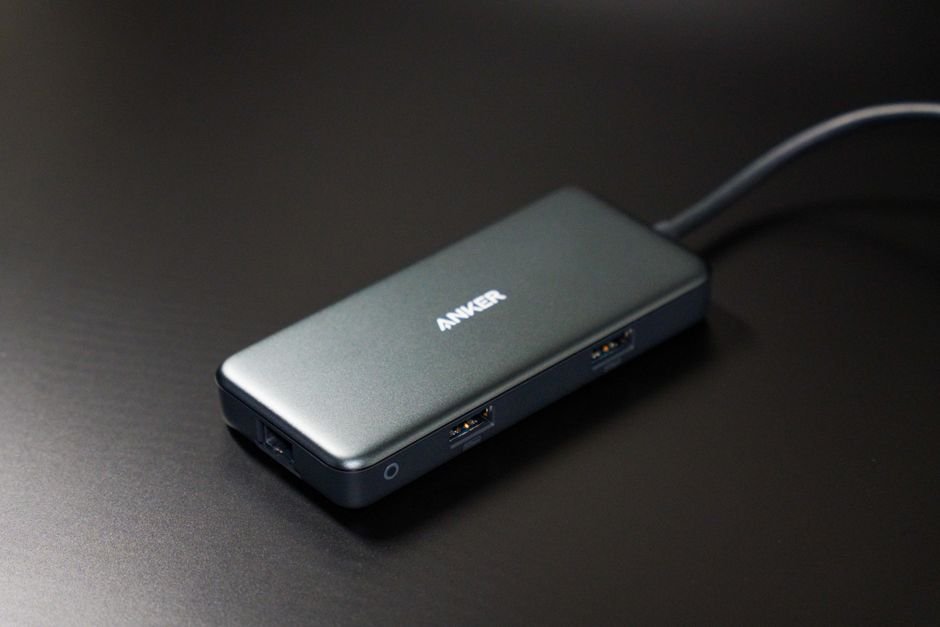
2. Anker 575 USB-C Docking Station (13-in-1) — Best Value
The Anker 575 hits a brilliant sweet spot: 13 ports, dual-monitor support, and 85W (or higher on some configs) of laptop charging, at a price well below the Thunderbolt flagships. It covers the essentials beautifully — dual HDMI, ethernet, a stack of USB-A/USB-C ports, and a card reader — with Anker’s reliable build and reputation. As a standard USB-C dock it has some display limits versus Thunderbolt, but for the vast majority of single- and dual-monitor desk setups, it delivers everything most people need for far less money. The smart-value default.
- ✅ 13 ports with dual-monitor support
- ✅ Strong laptop charging (85W+)
- ✅ Reliable Anker build at a great price
- ❌ USB-C (not Thunderbolt) display/data limits
Type: USB-C | Best for: Most dual-monitor desk setups
3. Plugable USB-C Triple Display Dock — Best for Multiple Monitors
If your priority is running several external monitors — including on laptops with limited native display support — the Plugable triple-display dock is purpose-built for it. Using DisplayLink technology, it can drive multiple monitors even from machines (like many USB-C-only laptops and M-series Macs) that normally can’t, which is its standout advantage. It also provides ethernet, USB ports, and laptop charging. The trade-off is that DisplayLink relies on a software driver and isn’t ideal for high-frame-rate gaming, but for productivity multi-monitor setups, it solves a real problem elegantly.
- ✅ Drives multiple monitors, even on display-limited laptops
- ✅ DisplayLink works where standard docks can’t
- ✅ Ethernet, USB, and laptop charging included
- ❌ DisplayLink needs a driver; not for high-fps gaming
Type: USB-C (DisplayLink) | Best for: Multi-monitor productivity setups
4. Dell WD22TB4 Thunderbolt Dock — Best for Business
Dell’s WD22TB4 is the polished, dependable choice for a professional or corporate desk, especially if you use a Dell laptop. Built on Thunderbolt 4, it offers robust dual/triple display support, high-wattage charging (up to 130W to power even performance laptops), ethernet, and a full set of ports, all with the enterprise-grade reliability and management features IT departments value. It’s understated, rock-solid, and “just works” day after day. While it pairs best with Dell machines, it’s broadly compatible — an excellent, reliable dock for serious work setups.
- ✅ Thunderbolt 4 with strong multi-display support
- ✅ Up to 130W charging — powers performance laptops
- ✅ Enterprise-grade reliability; great with Dell laptops
- ❌ Optimized for Dell; premium price
Type: Thunderbolt 4 | Best for: Business and Dell-laptop setups
5. Belkin Connect Thunderbolt 4 Dock Pro — Best Premium Alternative
The Belkin Connect Thunderbolt 4 Dock Pro is a premium, beautifully-built alternative to the CalDigit, offering a generous spread of Thunderbolt 4, USB-A, and USB-C ports, dual 4K (or single 8K) display support, 2.5GbE ethernet, an SD reader, and 90W laptop charging. Belkin’s build quality and reliability are excellent, and the clean design looks great on a desk. It’s a top-tier Thunderbolt dock that competes directly with the best, and a great pick if you want flagship capability with Belkin’s polish and support. A refined, powerful choice.
- ✅ Dual 4K / single 8K display; 90W charging
- ✅ Thunderbolt 4, 2.5GbE, SD reader, ample ports
- ✅ Premium build and clean design
- ❌ Premium price; needs Thunderbolt/USB4
Type: Thunderbolt 4 | Best for: A polished flagship Thunderbolt dock
6. UGREEN Revodok Pro USB-C Docking Station — Best Budget
UGREEN has become a go-to for excellent-value accessories, and the Revodok Pro USB-C dock delivers a remarkable feature set for the price. Depending on the model you get 10+ ports — HDMI (often dual), USB-A/USB-C, ethernet, an SD reader, and useful laptop charging — in a compact, well-made aluminum body. It won’t match Thunderbolt flagships on display bandwidth, but for adding a monitor (or two), peripherals, and wired internet to a laptop on a budget, it’s a fantastic, reliable choice that punches well above its price. The smart budget pick.
- ✅ 10+ ports including HDMI, ethernet, SD, charging
- ✅ Compact, well-made aluminum build
- ✅ Outstanding value for the feature set
- ❌ USB-C bandwidth limits vs. Thunderbolt
Type: USB-C | Best for: Budget desk expansion
7. Anker 341 USB-C Hub (7-in-1) — Best Portable
Not everyone needs a desk-anchored monolith. The Anker 341 is a compact, pocketable 7-in-1 USB-C hub for people who want to add the essentials on the go — HDMI for a monitor or projector, USB-A ports, an SD/microSD reader, and pass-through charging — without carrying a full dock. It’s light, affordable, and ideal for travel, hot-desking, or a minimalist setup. It’s a hub rather than a full docking station (no ethernet on this model, fewer ports), but for portable, plug-and-go expansion, it’s an excellent, dependable little companion.
- ✅ Compact, pocketable 7-in-1 hub
- ✅ HDMI, USB-A, card reader, pass-through charging
- ✅ Great for travel and hot-desking; affordable
- ❌ Fewer ports than a full dock (e.g., no ethernet)
Type: USB-C hub | Best for: Travel and portable use
Setup Tips
- Confirm your laptop’s support first. Check whether it has Thunderbolt/USB4 or plain USB-C, and how many external displays it can drive — this determines what a dock can actually deliver.
- Match the charging wattage. Make sure the dock’s power delivery meets your laptop’s needs so it charges over the single cable.
- Use the right cable. For Thunderbolt docks, use a certified Thunderbolt 4 cable to hit full bandwidth — a basic USB-C cable can bottleneck it.
- Update firmware and drivers. Install the latest dock firmware (and DisplayLink drivers if applicable) for the best stability and display support.
- Plan your monitors. Know your target resolution and refresh rate, and verify the dock’s outputs (HDMI/DisplayPort versions) support them.
Frequently Asked Questions
What’s the difference between a USB-C hub and a docking station?
A USB-C hub is typically compact, portable, and bus-powered, adding a handful of ports (like HDMI, USB-A, and a card reader) for travel and light use. A docking station is larger, usually has its own power supply, offers far more ports, supports multiple monitors and laptop charging, and is designed to anchor a permanent desk setup. In short: a hub is for portability and a few extra ports; a dock is for transforming your laptop into a full workstation with one cable.
Do I need a Thunderbolt dock or will USB-C do?
It depends on your needs and your laptop. If you want dual high-resolution monitors, the fastest data transfer, and high-wattage charging — and your laptop has Thunderbolt 4 or USB4 — a Thunderbolt dock unlocks the most. If you mainly need a single monitor, peripherals, ethernet, and charging, a quality standard USB-C dock does the job for much less. Always check what your specific laptop supports, since a Thunderbolt dock’s full benefits require a Thunderbolt-capable machine.
Can a docking station charge my laptop?
Most full docking stations can, through the same single USB-C/Thunderbolt cable, using power delivery (PD). The key is matching the dock’s wattage to your laptop’s requirements — ultrabooks often need 60–100W, while performance laptops need more. If a dock’s PD output is lower than your laptop needs, it may charge slowly or not keep up under load. Check both the dock’s PD rating and your laptop’s charging requirement before buying.
Why won’t my dock drive two monitors?
Usually it’s a laptop limitation, not the dock. Many USB-C-only laptops, and Apple’s M-series MacBooks in particular, natively support only one external display without special technology. Docks that use DisplayLink (like the Plugable triple-display model) can work around this with a driver to add more monitors. So if dual displays are essential, either use a Thunderbolt laptop with a Thunderbolt dock, or choose a DisplayLink-based dock that supports multiple monitors regardless of the laptop.
Are docking stations compatible with MacBooks?
Yes, but with a caveat about displays. Thunderbolt and USB-C docks work with MacBooks for ports, charging, ethernet, and peripherals. However, M-series MacBook Air and base MacBook Pro models natively drive only one external monitor — so to run multiple displays you’ll need a DisplayLink-based dock (with the driver installed) or a higher-end Mac that supports more displays. Always check your specific MacBook model’s external display support before buying a dock for a multi-monitor setup.
The Bottom Line
A USB-C docking station is the foundation of a clean, efficient, single-cable desk — and 2026 has an excellent option at every level. For a no-compromise workstation, the CalDigit TS4 is the best overall, while the Anker 575 covers most dual-monitor setups for far less. Multi-monitor users with display-limited laptops should look at the Plugable DisplayLink dock, businesses can’t go wrong with the Dell WD22TB4, and the UGREEN Revodok is the budget hero. Just confirm what your laptop supports before you buy.
Completing your workstation? See our guides to the best monitors for coding, the best webcams for video calls, and the best portable SSDs.


 Khan Nasir